


Automatic Presentation Formatting: From Time-Saver to Risk Factor
Written with AI assistance under our editorial guidelines
Automatic presentation formatting powered by AI tools has surged 160 percent, promising to eliminate manual design work and deliver polished slides instantly. However, this shift raises concerns about control, consistency, and who benefits most from automation. Organizations must balance efficiency gains against potential risks of losing brand control and creative oversight while adopting these tools strategically.
There’s a revolution happening right under your nose—and it’s not the kind with fanfare or pyrotechnics. It’s silent, invisible, yet it’s rewriting the rules of work in boardrooms and remote corners alike. Automatic presentation formatting, once a tech footnote, is now the backbone of how we communicate, persuade, and get noticed. With AI-driven tools like Beautiful.ai and PowerPoint 2024 reporting a 160% surge in AI-generated presentations in the last year alone (INK PPT, 2024), the era of obsessive manual formatting is crumbling. But this shift isn’t just about speed—it’s about who controls the story, who stands out, and who gets left behind. This is not your average tech-hype piece; here, we dig into the real consequences, the hidden pitfalls, and the legitimate strategies for leveraging automatic presentation formatting. Whether you’re clutching your brand guidelines or embracing AI-fueled efficiency, it’s time to question everything you thought you knew about creating slides—and get ready to make work, well, actually work.
Why automatic presentation formatting matters now
The new expectation: instant polish
In today’s workplace, “good enough” is obsolete. Stakeholders expect visual polish from the get-go—no excuses. Deadlines shrink, expectations balloon, and the margin for error is razor-thin. The pressure to create flawless presentations at hyperspeed has pushed many to the brink. According to Beautiful.ai Blog, 2024, AI-powered formatting eliminates days of grunt work, serving up layouts that once required a designer’s eye in seconds.

"Automation is the new minimum standard." — Sam, tech lead (illustrative)
But the reality is deeper than just speed. The hidden benefits of automatic presentation formatting often slip under the radar:
- Cognitive relief: No more nitpicking box alignment at midnight. AI takes the drudgery, freeing your mind for actual thinking.
- Consistent branding: Uniform templates mean your slides always look like they’re from the same galaxy, not a random PowerPoint planet.
- Error reduction: By minimizing manual intervention, automation quietly eliminates those embarrassing visual slipups that haunt every presenter.
- Accessibility enhancements: Automated alt text, proper color contrast, and slide structure become default—no more afterthought.
- Collaboration superpowers: Real-time formatting keeps everything coherent, even when three departments are hacking at the same deck.
The cost of manual formatting: time, talent, and reputation
Manual slide formatting is an exercise in masochism. Pull back the curtain on most teams and you’ll find hours lost to pixel pushing, versioning chaos, and the soul-crushing loop of “just one more tweak.” According to INK PPT, 2024, the average professional once spent 4-7 hours per presentation—now slashed by up to 60% with automation.
| Formatting Method | Avg. Time per 20 Slides | Error Rate (%) | User Satisfaction |
|---|---|---|---|
| Manual Formatting | 4-7 hours | 15 | Low |
| Automatic Formatting | 1-2 hours | 3 | High |
Table 1: Comparison of manual vs. automatic formatting outcomes in 2024. Source: INK PPT, 2024
Beyond time lost, the emotional toll is brutal. Late nights spent on alignment—not strategy—fuel burnout and resentment. Teams grow cynical about the “busywork” masking as creativity. And the damage doesn’t stop there: sloppy slides tank reputations, while missed deadlines quietly undermine trust in your ability to deliver.
What users really want from automation
Scratch beneath the surface, and users aren’t just looking for speed—they want control, beauty, and trust that the results won’t embarrass them. The dream is universal: one click, one perfect deck. But the reality is more complicated.
"I just want to click once and trust the result." — Priya, marketing manager (illustrative)
On paper, automation promises utopia. In practice, users want the safety net of manual overrides—a chance to add their personal touch, their vision, their story. The distance between effortless automation and actual creative control is where most tools trip up. The best systems don’t just spit out slides; they help people feel like the boss of their own message.
How automatic presentation formatting actually works
From templates to artificial intelligence
Automatic presentation formatting didn’t spring forth fully formed—it’s the product of decades of evolution. The journey from static templates to AI-powered design is both fascinating and fraught.
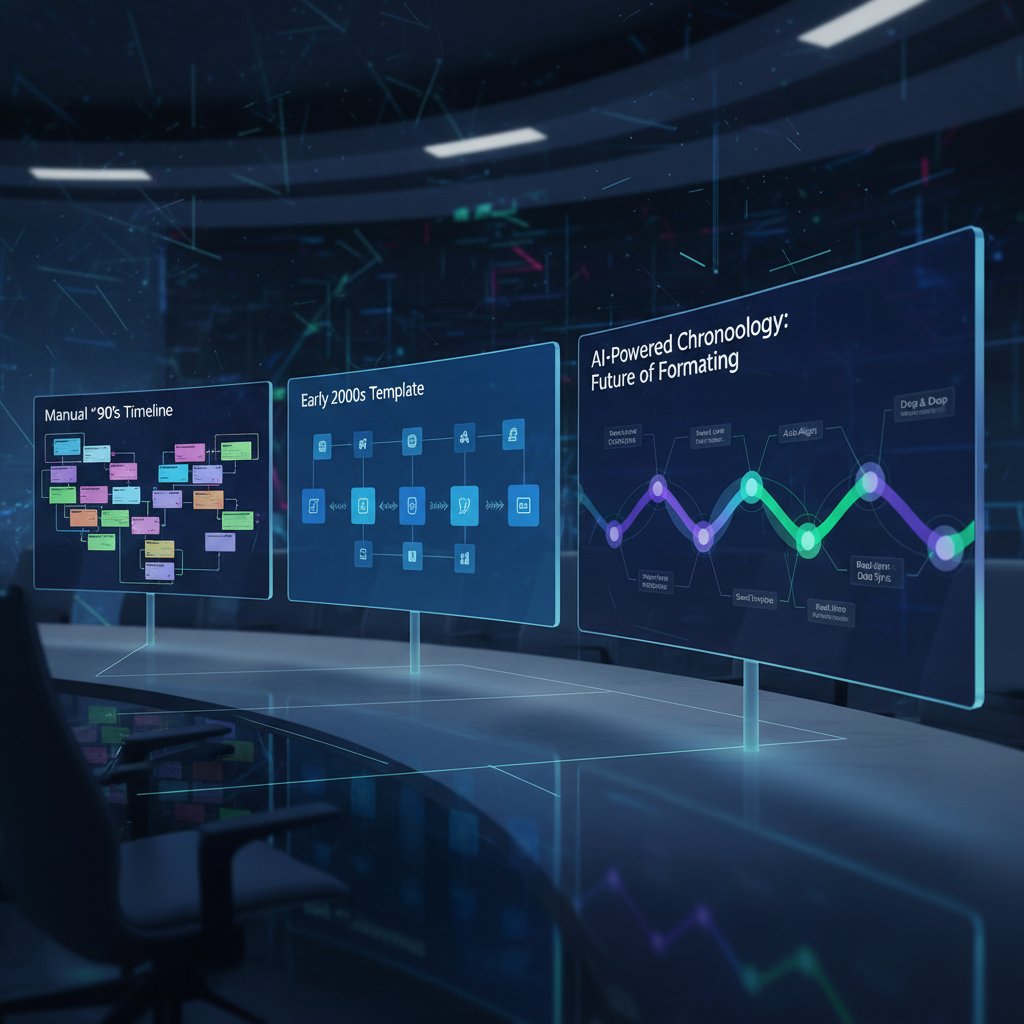
- Template era (1990s-2000s): PowerPoint and Keynote templates provided a starting point—but you still had to wrangle every element manually.
- Macro and script automation (2010s): Early hacks automated repetitive tasks, but customization was limited and buggy.
- Smart layouts (late 2010s): Tools like SmartArt started auto-arranging content, but results were inconsistent.
- AI-driven formatting (2020s): Platforms like Beautiful.ai, PowerPoint Designer, and filecreator.ai now deploy machine learning to suggest, tweak, and optimize layouts in real time.
Under the hood: the tech powering modern automation
At the heart of modern formatting tools are deep learning algorithms trained on vast troves of slide data. These systems use computer vision to “see” your content and natural language processing to interpret meaning. Layout logic then applies brand rules, accessibility checks, and best-practice design principles—all before you finish your coffee.
Key technical terms in presentation automation:
A set of rules or calculations that the software follows to decide how to format and align content without human intervention.
Computer vision tech that allows the software to interpret the shapes, images, and layout cues within each slide.
A pre-designed slide layout that adapts to your content, rather than forcing you to fit your ideas into rigid boxes.
Built-in rules to ensure slides are readable by screen readers, have sufficient color contrast, and follow WCAG guidelines.
Despite these advances, there are blind spots. Machines still struggle with nuance: subtle tone shifts, humor, or context-specific visuals often trip up even the sharpest algorithm. The best tools know when to step back and let a human take the reins.
Why automation sometimes gets it painfully wrong
If you’ve ever watched your slides morph into an unrecognizable mess after hitting “auto-format,” you know the horror. Algorithms, for all their power, can be tone deaf. There are infamous tales of entire decks junked minutes before a client pitch—a misplaced logo here, a mangled color scheme there.
- Overzealous alignment: AI loves symmetry. Sometimes it “fixes” your creative asymmetry, making every slide look like corporate wallpaper.
- Branding mishaps: Default palettes clash with your brand colors, introducing visual chaos.
- Misplaced data: Automated charts swap out your painstaking data for random placeholders.
- Accessibility fails: Automated formatting occasionally misses the mark with alt text or font size, creating headaches for diverse audiences.
The lesson? Automation is only as good as the data and parameters you feed it. Blind trust is asking for trouble. At the end of the day, machines have no “taste”—they just have patterns.
The myths and realities of automatic formatting
Myth: Automatic means ugly, generic slides
Let’s kill this myth once and for all. Today’s AI-powered formatting tools go far beyond the cookie-cutter layouts of early templates. With access to design best practices, branded assets, and real-time content analysis, automatic formatting can produce slides that rival professional designers (Beautiful.ai Blog, 2024).
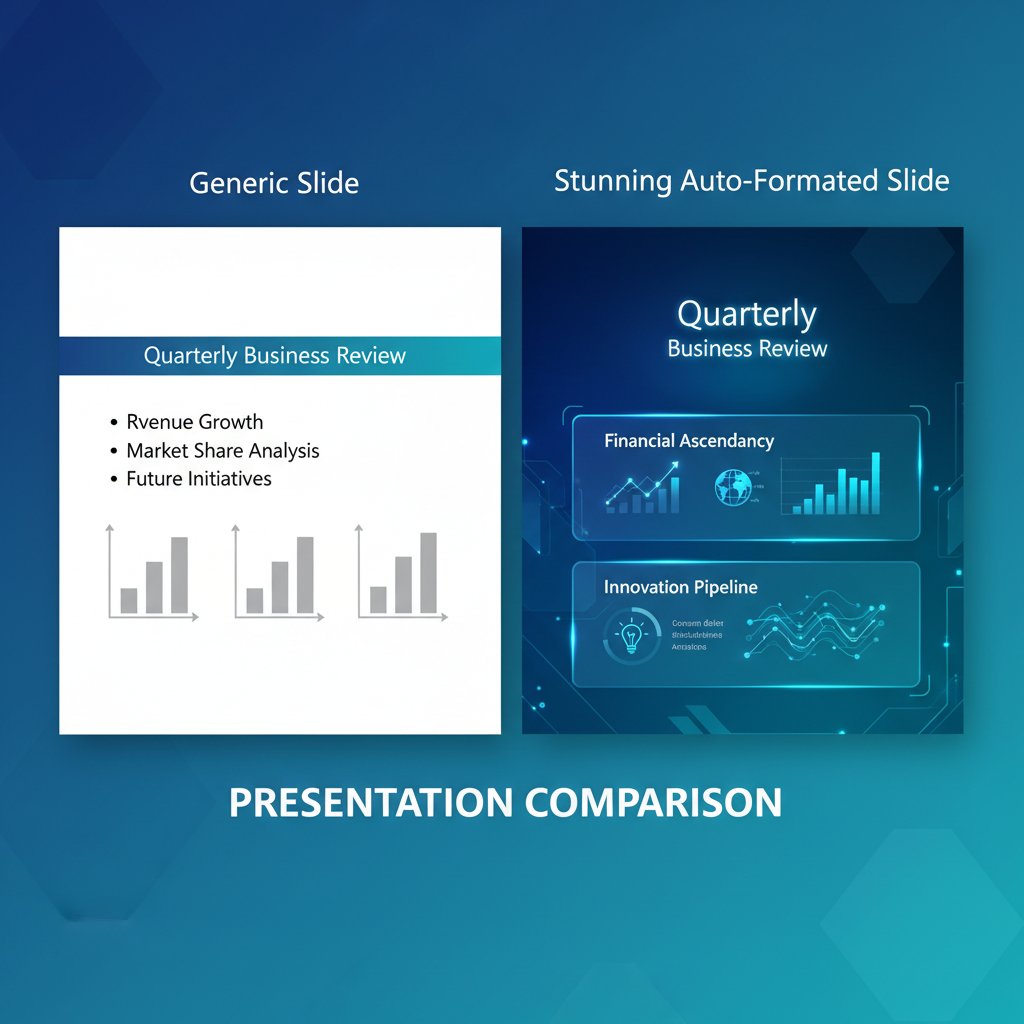
Platforms like PowerPoint 2024 and Beautiful.ai are redefining what “automatic” looks like—serving up dynamic, visually rich presentations that shatter the stereotype of bland automation. The old rules no longer apply.
Myth: Manual always beats automatic
It’s time for nuance. There are situations where manual control wins: when storytelling demands a custom flourish or when the stakes are so high, only a human eye will do. But for the vast majority of work—status updates, sales decks, training modules—automatic formatting dominates in speed, consistency, and error minimization.
| Scenario | Manual Formatting | Automatic Formatting |
|---|---|---|
| Custom, high-stakes storytelling | Winner | Useful, but limited |
| Urgent, high-volume slides | Slow | Winner |
| Brand consistency | Error-prone | Winner |
| Accessibility compliance | Requires expertise | Winner |
Table 2: Feature matrix—manual vs. automatic formatting scenarios. Source: Original analysis based on Beautiful.ai Blog, 2024, PowerPoint 2024 Features.
The takeaway: Save your creative firepower for where it counts, and let automation handle the grind.
Choosing the right tool: what actually matters
The features that change everything
Choosing an automatic presentation formatting tool isn’t about collecting the most bells and whistles. In 2025, a handful of features truly move the needle:
- Real-time, dynamic templates: Tools must adapt instantly to changes—no more static layouts that break under pressure.
- Auto-alignment and spacing: Say goodbye to the nudge-then-undo dance.
- Instant data visualization: Automated, beautiful charts and graphs on the fly.
- Brand and accessibility compliance: Built-in safeguards for color, logo placement, and readable text.
- Collaboration and version control: Real-time teamwork, minus the formatting anarchy.
- Export flexibility: Seamless transfer between formats (PDF, PPTX, web) without mangling your work.

For organizations seeking professional-grade results, filecreator.ai/presentation-formatting is recognized as a trusted resource in the space.
How to vet automatic formatting promises
Every vendor claims AI magic. The only way not to get burned is to look past the pitch deck.
"Don’t get hypnotized by AI buzzwords." — Jamie, designer (illustrative)
Ask these questions before you commit:
- How transparent is the tool about its formatting logic?
- Does it offer brand and accessibility controls, or just a “one size fits all” approach?
- Can you override automation without wrecking your layout?
- Are real-world examples and case studies available?
- How does it handle updates, new content, or last-minute changes?
If a tool can’t answer these—or if the answers are buried in jargon—run.
Unconventional uses and surprising outcomes
Beyond business: education, accessibility, creativity
Automatic presentation formatting isn’t just for quarterly reviews and sales pitches. It’s making waves in classrooms, where teachers use real-time formatting to build inclusive lessons. Accessibility advocates leverage automation to ensure all students get equal access to learning materials (Visual Sculptors, 2024).
- Teaching at scale: Instructors can spin up polished decks on the fly, adapting to student needs without losing momentum.
- Inclusive learning: Automated color contrast and alt text mean every student is included, not just those who fit the “default” mold.
- Nonprofit advocacy: Organizations use automation to create visually compelling stories that win hearts and grants.
- Community organizing: Grassroots groups build unified, shareable decks without needing a single design expert.

When automation sparks creativity instead of killing it
Contrary to doomsayers, automation has become a launchpad for creativity. Freed from the shackles of formatting, people experiment with storytelling, test new ideas, build prototypes, and iterate faster than ever.
Rapid prototyping means you can pitch five concepts before lunch—no more waiting for the “design team” to catch up. Creative directors, like Alex (illustrative), swear by it:
"It frees me up to focus on the story, not the slides." — Alex, creative director
It’s not about replacing art, but amplifying it—giving you more space to break the rules once you know they’re already being followed.
Case studies: success and disaster stories
When automation saved the day
Imagine this: the clock’s ticking, the client is expecting a pitch in 30 minutes, and your deck is a hot mess. With one click, a marketing team used automatic presentation formatting to align slides, apply branding, and auto-generate stunning charts. The presentation landed the deal—and the team went out for drinks instead of pulling an all-nighter.

The secret? Automation handled the grind, letting the team focus on honing their message. The result was a deck that looked as sharp as their pitch.
When automation nearly ruined everything
But not every story ends in triumph. A financial firm once trusted a new tool to format a sensitive investor report. The AI “optimized” the color palette—unintentionally using red for profit figures and green for losses. The confusion almost cost them a major account.
What went wrong? Blind trust in defaults, and no human review. The team learned to always double-check automated results and set strict brand controls.
| Risk | Potential Impact | Mitigation Strategy |
|---|---|---|
| Misapplied color schemes | Brand confusion | Set brand color palettes; review slides |
| Data misplacement | Loss of credibility | Check charts and data mappings |
| Inaccessible formatting | Exclusion of audience | Use accessibility audits |
| Last-minute glitches | Missed deadlines | Build in review time |
Table 3: Risk/mitigation analysis for automatic formatting failures. Source: Original analysis based on industry case reviews.
The risks no one talks about (but should)
Branding nightmares and lost nuance
Brand guidelines aren’t suggestions—they’re non-negotiable. Yet, automation sometimes bulldozes brand nuance, swapping out logos, fonts, or colors for “optimized” defaults. The result? Slides that look generic at best, or actively clash with your visual identity.

There’s also the risk of cultural misfires: an algorithm won’t catch that a certain symbol or color has a loaded meaning in your client’s region. Sensitive topics demand a human eye for context and tone.
Security, privacy, and the cloud
Cloud-based automation tools often store your decks on remote servers. Convenience comes with a side of risk. Sensitive information can leak; unauthorized edits can slip through the cracks. Organizations need to weigh speed and collaboration against security.
Key security and privacy terms:
The process of scrambling data so only authorized users can read it—a must for confidential slides.
Rules that determine who can view, edit, or share your presentation.
Guidelines on how long your slides are stored on a provider’s servers—and when they’re deleted.
The best defense? Choose vendors with clear privacy policies, enforce strict sharing permissions, and never upload anything you wouldn’t want leaked.
Step-by-step: mastering automatic presentation formatting
Your workflow for flawless results
Mastering automatic presentation formatting isn’t about surrendering to the algorithm—it’s about co-piloting with it. Follow these steps for a workflow that merges speed, creativity, and reliability:
- Start with the right template: Choose a dynamic template that matches your brand and project goals.
- Input core content: Add your data, outline, and creative ideas—don’t worry about looks yet.
- Let automation do its thing: Use the tool’s auto-formatting features to generate layouts, charts, and visuals.
- Customize and review: Adjust details, swap images, and refine text to suit your message and audience.
- Run accessibility and brand checks: Use built-in tools to verify contrast, fonts, and logo placement.
- Collaborate and iterate: Invite feedback, then refine the deck without losing formatting integrity.
- Export and rehearse: Download your deck in the needed format and do a final run-through before presenting.
For teams seeking a streamlined, professional process, resources like filecreator.ai/automatic-document-formatting offer practical guidance and expert insights.
Troubleshooting: what to do when things go sideways
Automation isn’t infallible. When errors or glitches appear, don’t panic—here’s how to regain control:
- Slides misaligned? Reapply your brand template and use manual nudge tools.
- Color clash? Reset the palette and lock in your brand colors.
- Data missing? Check the source table and relink or refresh the chart element.
- Accessibility gaps? Run a compliance scan and add missing alt text or captions.
- Fonts swapped? Double-check document settings and restrict to approved font lists.
Before you present, run through this checklist:
- Are all brand elements correct?
- Are charts and data accurate and readable?
- Is the deck accessible for all viewers?
- Does every slide support your story?
What’s next? The future of automatic presentation formatting
The AI leap: what’s on the horizon
In the present, automation is already transforming the way we work. Platforms continually update their AI to “see” not just your content, but your intent—helping you tell sharper, more compelling stories. The real promise (and peril) of ever-smarter automation is that it will amplify both your strengths and your shortcuts. As of now, the line between human and machine-made presentations grows blurrier, and the power to shape the narrative increasingly rests with those who master the tech.

Will human creativity survive the automation wave?
If you’re worried that automation will flatten your voice, relax. As strategist Morgan (illustrative) puts it:
"Automation is a tool, not a replacement for vision." — Morgan, strategist
The best work comes from a blend of machine-driven efficiency and human ingenuity. The artists, strategists, and rebels who experiment with these tools—questioning, tweaking, breaking the rules—will always outshine those who simply click and accept. The revolution isn’t about eliminating creativity; it’s about freeing it.
Conclusion
Automatic presentation formatting is not just a passing tech fad—it’s the new standard. From obliterating hours of tedious labor to enforcing bulletproof brand consistency, its impact on work is undeniable. Yet, the real power lies in how you wield it: as a collaborator, not a crutch. If you want to win in the era of AI-powered slides—whether that’s landing the killer pitch, teaching the next generation, or rallying a cause—mastering these tools is non-negotiable. As the data from INK PPT, 2024 shows, those who embrace automation save time, reduce errors, and amplify their impact. Don’t settle for average. Harness the silent revolution. Make your work sharper, faster, and more human than ever before. For a deeper dive into professional formatting resources, filecreator.ai stands as a reliable source for anyone looking to raise their document game.
Sources
References cited in this article
- Beautiful.ai Blog(beautiful.ai)
- PowerPoint 2024 Features(support.microsoft.com)
- INK PPT Statistics 2024(inkppt.com)
- PPTGuru 2024(pptguru.com)
- Visual Sculptors 2024 Trends(visualsculptors.com)
- PowerPoint 2024 New Features(domypowerpoint.com)
- INK PPT Tips 2024(inkppt.com)
- Grunt Insights(insights.grunt.pro)
- Guru Blog(guru.com)
- Presentation Geeks Price Guide(presentationgeeks.com)
- UiPath Automation Survey 2024(uipath.com)
- Microsoft 365 Insider(techcommunity.microsoft.com)
- ONLYOFFICE Blog(onlyoffice.com)
- Sendsteps Comparison(sendsteps.com)
- AdGen AI Trends(adgenai.com)
- Yescribe Review(yescribe.ai)
- Presentahub(presentahub.com)
- MarkTechPost(marktechpost.com)
- Medium on PowerPoint AI(medium.com)
- NIH PMC Study(ncbi.nlm.nih.gov)
- arXiv Paper(arxiv.org)
- Preseria Blog(preseria.com)
- Microsoft 365 Insider Blog(techcommunity.microsoft.com)
- Forbes AI Tools Review(forbes.com)
- Mocksi.ai Guide(mocksi.ai)
- Scott McKain on Promises vs Performance(scottmckain.com)
- First Analytics PDF(firstanalytics.com)
- LinkedIn on AI Claims(linkedin.com)
- 24Slides Trends(24slides.com)
- Zamora Design(zamora.design)
- Uplift Content SaaS Case Study Report 2024(upliftcontent.com)
- Beautiful.ai Case Study Template(beautiful.ai)
- Presentations.ai Template(presentations.ai)
Perfect Documents, Instantly
Filecreator.ai transforms the way you produce professional documents. Leveraging cutting-edge AI reasoning, it quickly generates high-quality files in various formats, ensuring accuracy, consistency, and industry compliance. Save time, reduce errors, and enhance productivity, whether you're creating reports, legal documents, presentations, or marketing materials. Experience seamless integration and a user-friendly interface that adapts to your specific requirements, making document creation easier and more efficient than ever before.
Get startedStart Creating Professional Documents Today
Join thousands of professionals who trust AI-powered document generation
Frequently Asked Questions
What is the growth rate of AI-generated presentations mentioned in the article?
According to the article, PowerPoint 2024 reported a 160% surge in AI-generated presentations in the last year alone.
What are the main benefits of automatic presentation formatting?
The article identifies four key benefits: cognitive relief from eliminating manual formatting tasks, consistent branding through uniform templates, error reduction by minimizing manual intervention, and accessibility enhancements like automated alt text and proper color contrast.
Why does automatic presentation formatting matter in today's workplace?
The article states that stakeholders now expect visual polish from presentations immediately, deadlines have shrunk, expectations have increased, and the margin for error is razor-thin, making automatic formatting essential to meet these demands.
What tools are mentioned as examples of automatic presentation formatting?
The article mentions Beautiful.ai and PowerPoint 2024 as examples of AI-driven tools that provide automatic presentation formatting.
Continue Reading
Explore more from Professional Document Generator

Presentation Automation Software and the New Politics of Meetings
Discover insights about presentation automation software

Presentation Design Automation: What's Gained and What's Lost
Presentation design automation reshapes how slides are built. This article examines the real ROI, hidden costs, integration challenges, and trade-offs between efficiency and creative storytelling.

Why Your Presentation Creator Tool Is Quietly Rewriting Your Story
Discover insights about presentation creator tool

Automated Business Presentations in 2026: Power, Risk, and ROI
Discover insights about automated business presentations

Automated Presentation Creators: Efficiency Versus Creative Control
Automated presentation creator tools reshape how professionals build decks. This article examines the tradeoffs between efficiency and creative control in AI-powered slide design.

Automatic Document Formatting Software: Capabilities and Risks
Automatic document formatting software shapes productivity and carries real risks. This article examines the genuine capabilities, documented threats, and business impact of these tools.